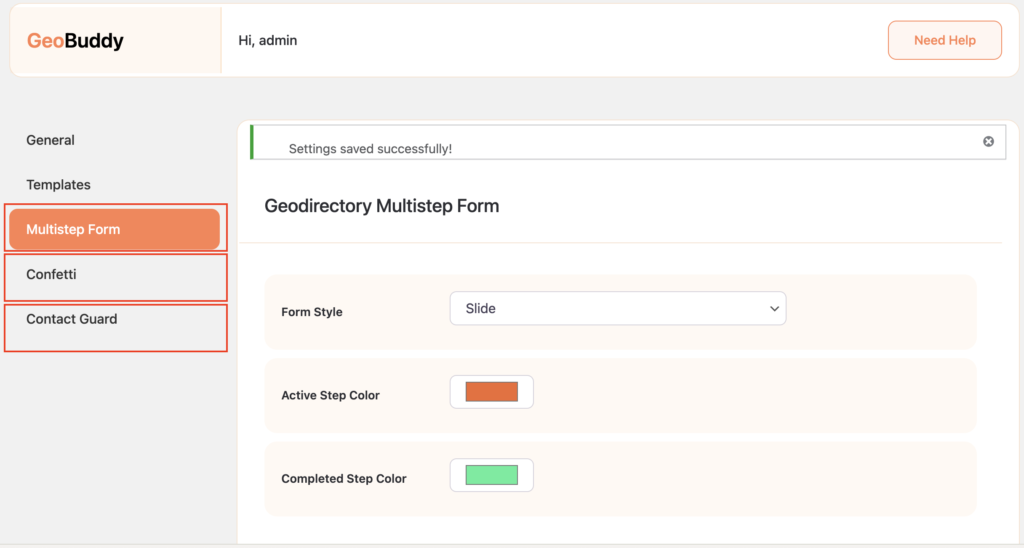

GeoBuddy is built as a platform — the core plugin handles social media fields, virtual tours, and site templates, while addons extend your directory with additional functionality. Each addon is installed separately and can be activated or deactivated independently.
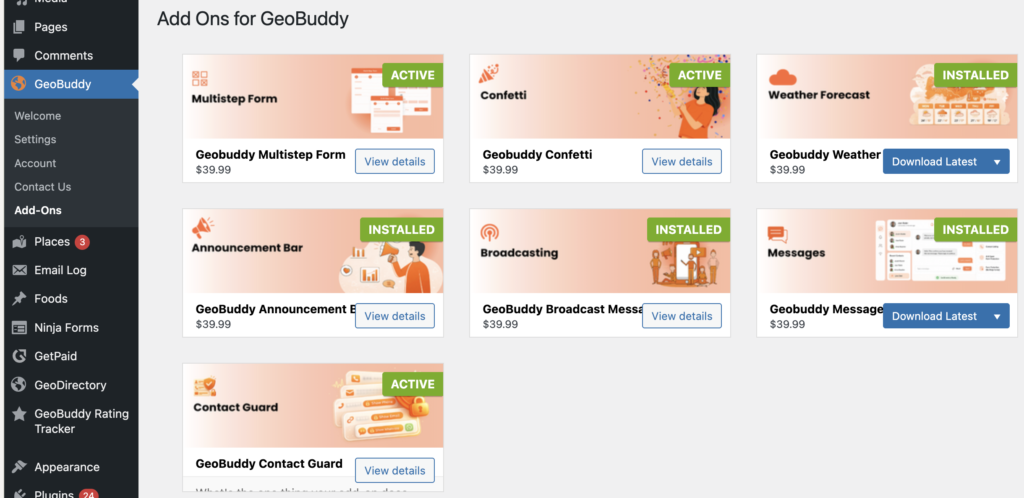
Available addons #
Multistep Form #
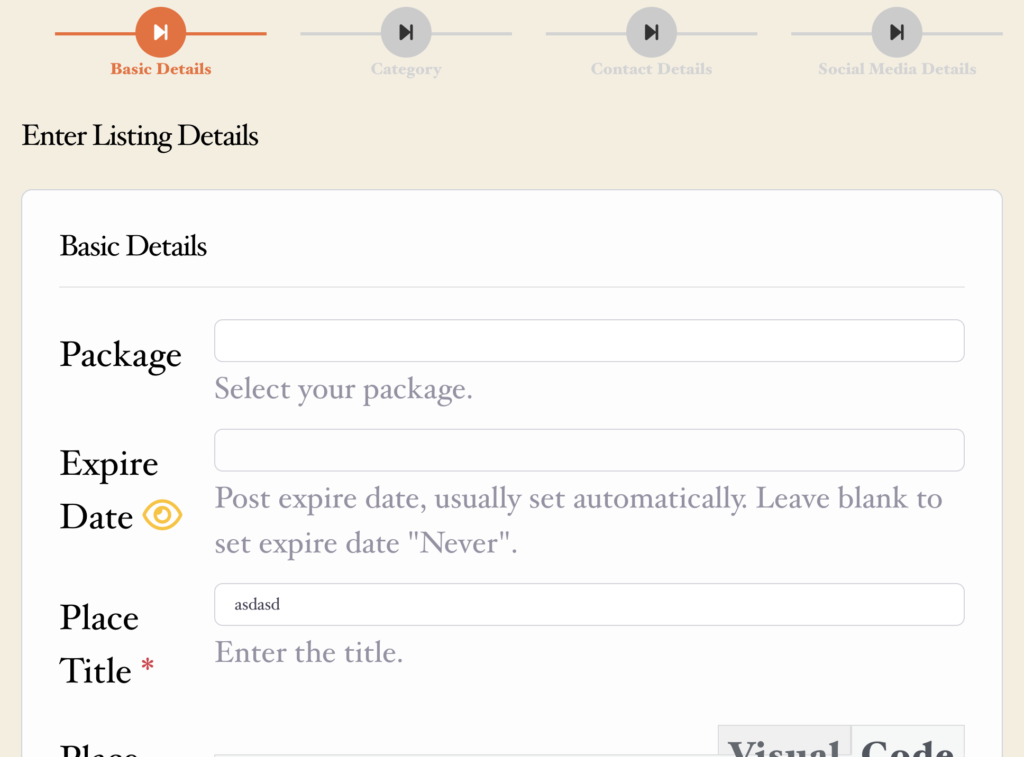
Transforms the default GeoDirectory “Add Listing” page into a clean, step-by-step submission flow with a progress bar. Breaking a long form into smaller steps reduces form abandonment and increases the rate at which listing owners complete their submissions.
Weather Forecast #
Displays real-time local weather data on listing pages based on the listing’s location. Useful for directories where weather is relevant to the visitor’s decision — such as outdoor venues, tourist attractions, or accommodation listings.
Confetti #
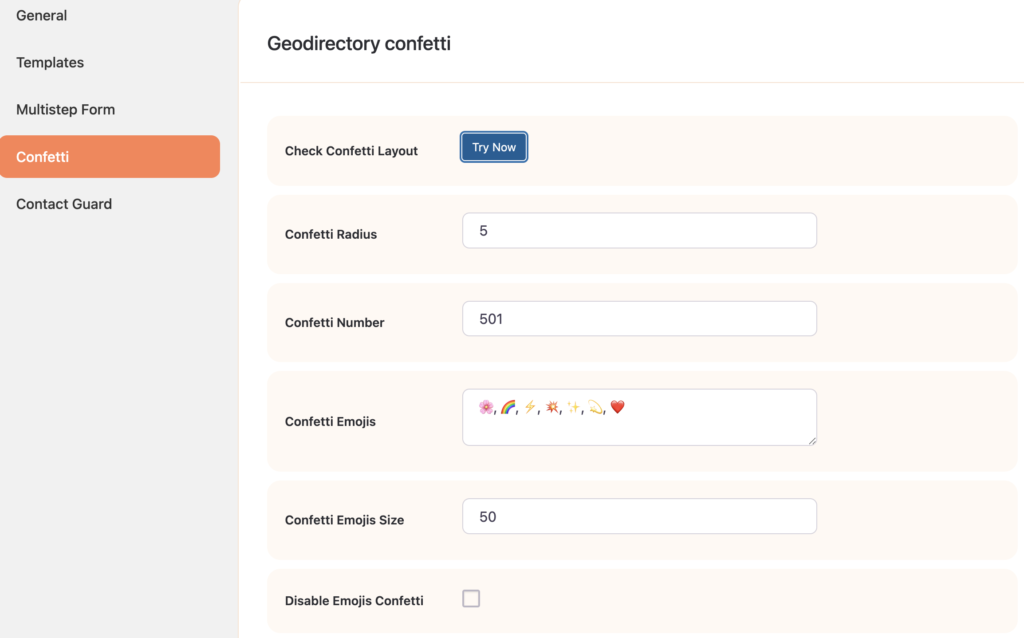
Triggers an animated confetti effect to celebrate successful listing submissions or other user actions. A small but effective way to improve the user experience and make the submission process feel rewarding.
Private Message #
Allows users and listing owners to communicate with each other directly through private messaging — without leaving your directory site. Keeps enquiries and conversations within your platform rather than sending users to external contact channels.
Announcement Bar #
Displays an important announcement banner across your directory website. Useful for communicating site-wide notices, promotions, or important updates to all visitors.
Broadcasting #
Lets you send broadcast messages or notifications to selected users or listing owners. Useful for notifying listing owners about policy changes, new features, or expiring listings — directly from your WordPress admin.
Where to get addons #
All GeoBuddy addons are available from wpgeobuddy.com. Premium addons are included with an active GeoBuddy Bundle Membership, or can be purchased individually.
Installing an addon #
Addons are installed via ZIP file upload — the same as any WordPress plugin manual install:
- Download the addon ZIP file from wpgeobuddy.com.
- Go to Plugins → Add New Plugin → Upload Plugin.
- Select the ZIP file and click Install Now.
- Click Activate Plugin.
Once activated, each addon appears in the GeoBuddy → Add-Ons page and may add its own settings panel under the GeoBuddy menu.