

GeoBuddy adds social media profile link fields directly to your GeoDirectory listings. When enabled, listing owners can provide links to their social media profiles — and visitors can connect with them instantly from the listing page.
Supported social media fields #
GeoBuddy supports the following social media fields on listings:
- YouTube — link to the business’s YouTube channel or profile
- LinkedIn — link to the business’s LinkedIn company page or personal profile
- WhatsApp — WhatsApp contact link for direct messaging
- TikTok — link to the business’s TikTok profile
Enabling social media fields #
Social media fields are disabled by default. To enable them:
- Go to GeoBuddy → Settings.
- Click the Custom Fields tab.
- Toggle on the social media fields you want to appear on listings.
- Click Save Changes.
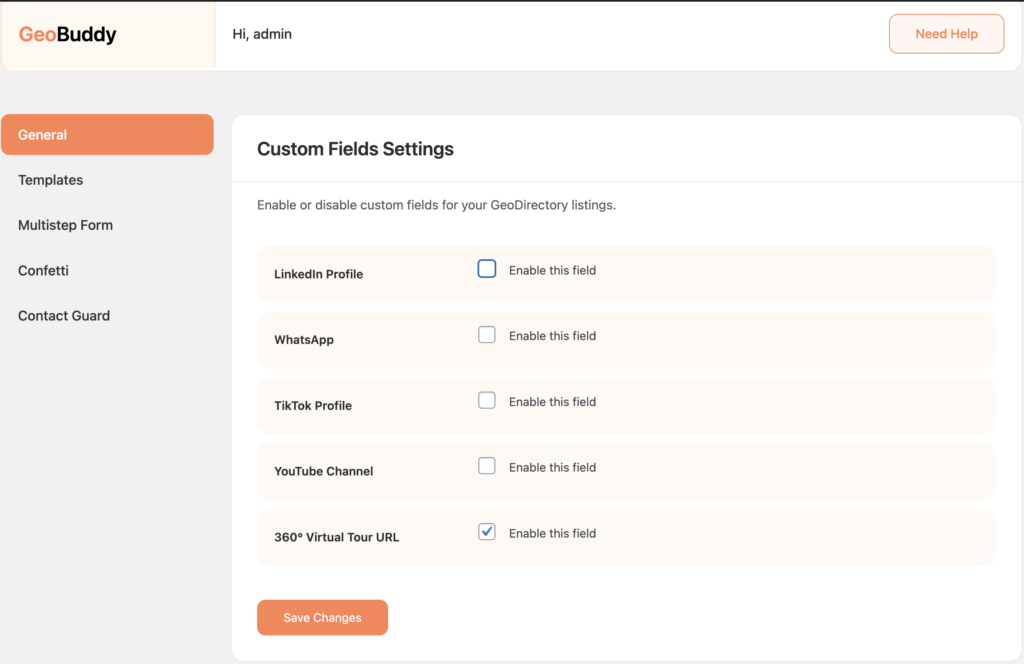
Only enable fields that are relevant to your directory’s audience. If most of your listing owners won’t use TikTok, for example, leave that field disabled to keep listing forms clean.
How listing owners add their social media links #
Once enabled, the social media fields appear in the listing submission form. Listing owners fill in their profile URLs when adding or editing a listing from the front end or from WordPress Admin → GeoDirectory → Listings.
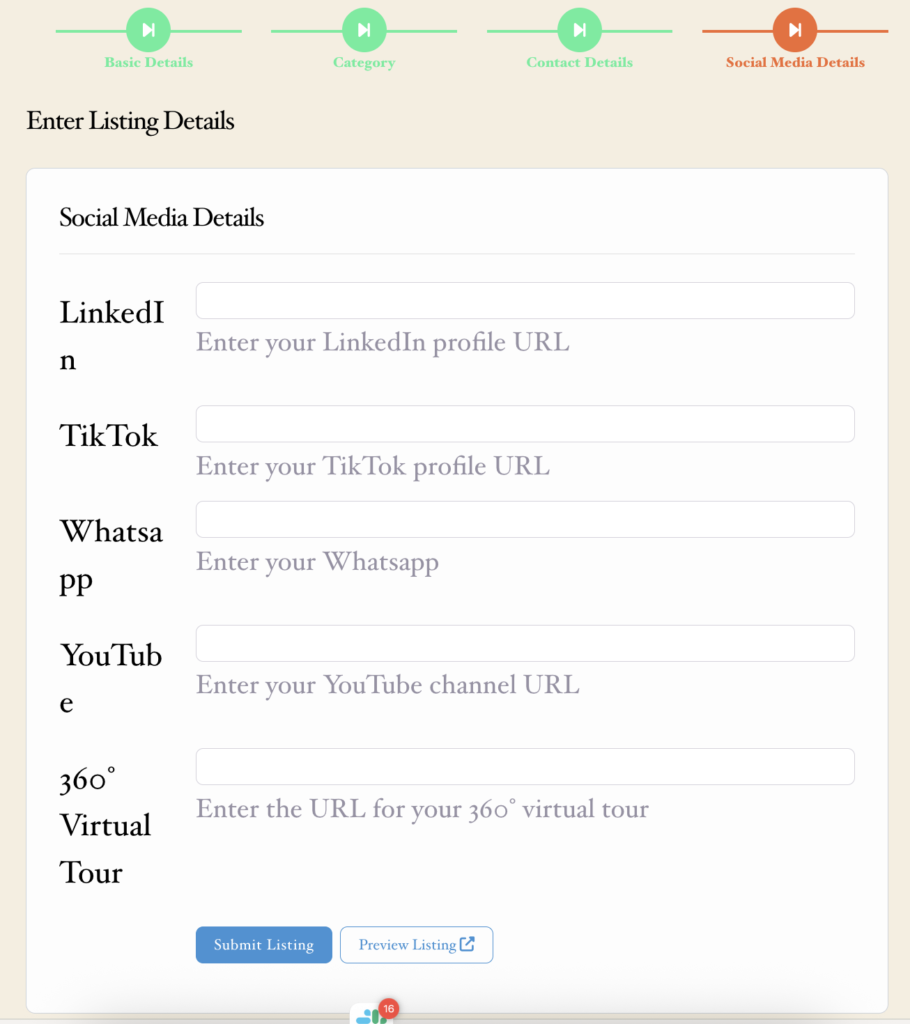
How social media fields appear on the listing page #
On the front-end listing detail page, filled social media fields are displayed as clickable links or icons. Visitors can click them to go directly to the business’s social media profile.
Fields that a listing owner has left blank do not appear on the listing page — only filled fields are shown.
Disabling a social media field #
To disable a social media field, go to GeoBuddy → Settings → Custom Fields, toggle the field off, and click Save Changes. The field will no longer appear on listing forms or listing pages. Any data listing owners had entered for that field is preserved in the database and will reappear if you re-enable the field later.


