

The GeoBuddy Weather Forecast addon displays real-time weather data directly on your GeoDirectory listing pages. It integrates with external weather APIs and renders an interactive weather widget at the listing’s location — automatically, without any manual input from listing owners.
Supported weather APIs #
The addon currently supports two weather API providers. You choose one from the settings panel:
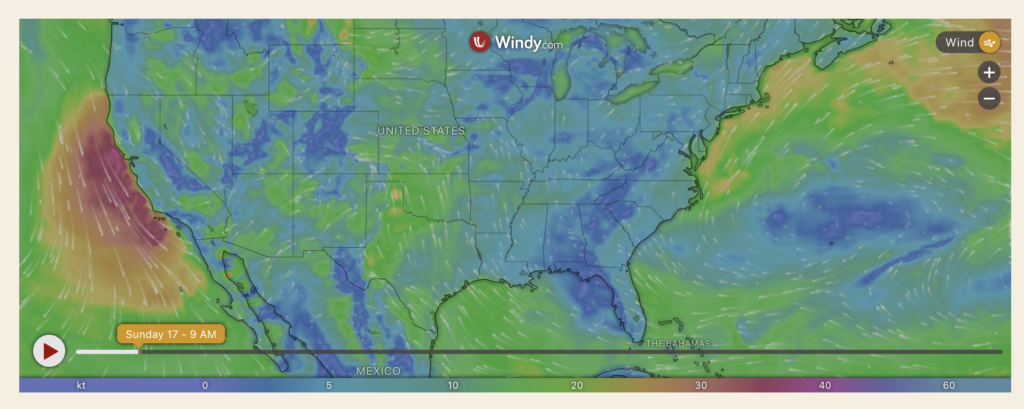
- Windy — displays an interactive, animated weather map powered by windy.com. No API key required for the basic embed.
- Tomorrow.IO — displays weather forecast data from tomorrow.io. Requires a Tomorrow.IO API key.
Support for additional weather API providers is planned for future releases.
Requirements #
- GeoBuddy core plugin installed and active
- GeoDirectory plugin installed and active
- A Tomorrow.IO API key (only required if using Tomorrow.IO — not needed for Windy)
Step 1 — Install the Weather Forecast addon #
Download the Weather Forecast addon ZIP file from wpgeobuddy.com, then install it:
- Go to Plugins → Add New Plugin → Upload Plugin.
- Select the addon ZIP file and click Install Now.
- Click Activate Plugin.
Step 2 — Open the Weather Forecast settings #
After activating the addon, go to GeoBuddy → Weather Forecast in your WordPress admin sidebar. The Settings panel will open.
Step 3 — Select your weather API #
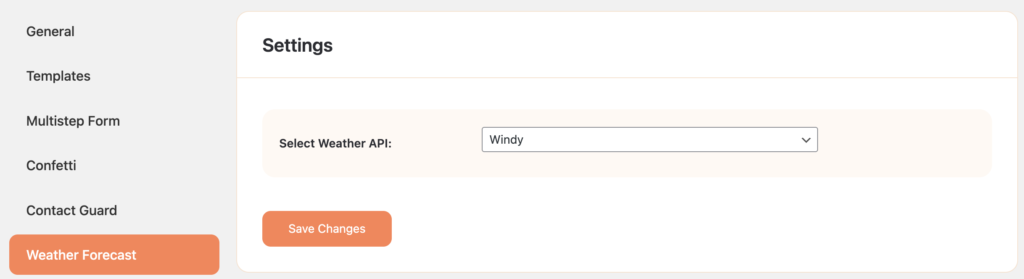
In the Settings panel, use the Select Weather API dropdown to choose your preferred weather provider.
Option A — Windy #
Select Windy from the dropdown. No API key is required. Click Save Changes and you are done with settings — proceed to Step 4.
Option B — Tomorrow.IO #
Select Tomorrow.IO from the dropdown. An API Key field will appear. Paste your Tomorrow.IO API key into this field, then click Save Changes.
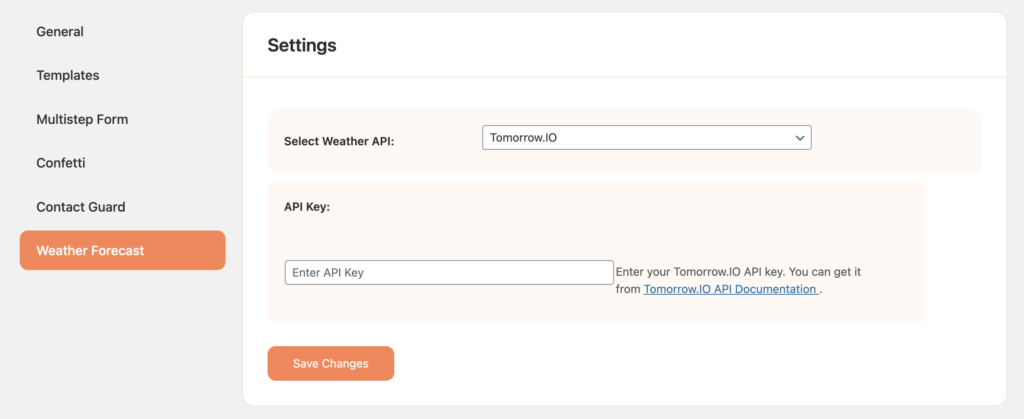
To get a Tomorrow.IO API key:
- Go to tomorrow.io and create a free account.
- After signing in, go to your account dashboard and copy your API key.
- Paste it into the API Key field in GeoBuddy → Weather Forecast → Settings.
Step 4 — Add the weather widget to your listing pages #
The weather widget is added to listing pages using the [gd_wf_buddy] shortcode or GD > Weather Forecast block. You add this shortcode to the listing detail page.
Adding via GeoDirectory listing tabs (recommended) #
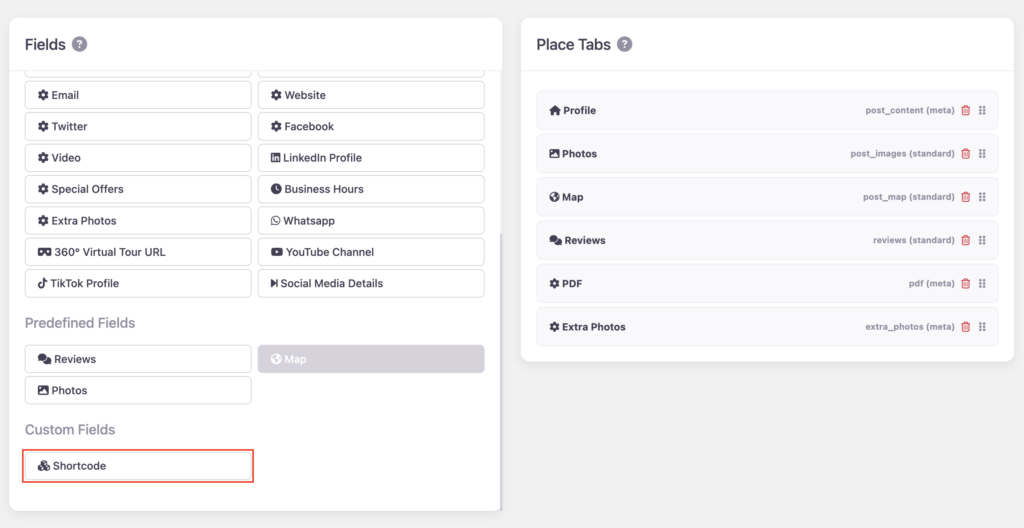
- Go to CPT → Settings → Tabs
- Click Shortcode to add a new shortcode field.
- Give the field a name (e.g., Weather Report).
- In the Tab content area, click Add Shortcode.
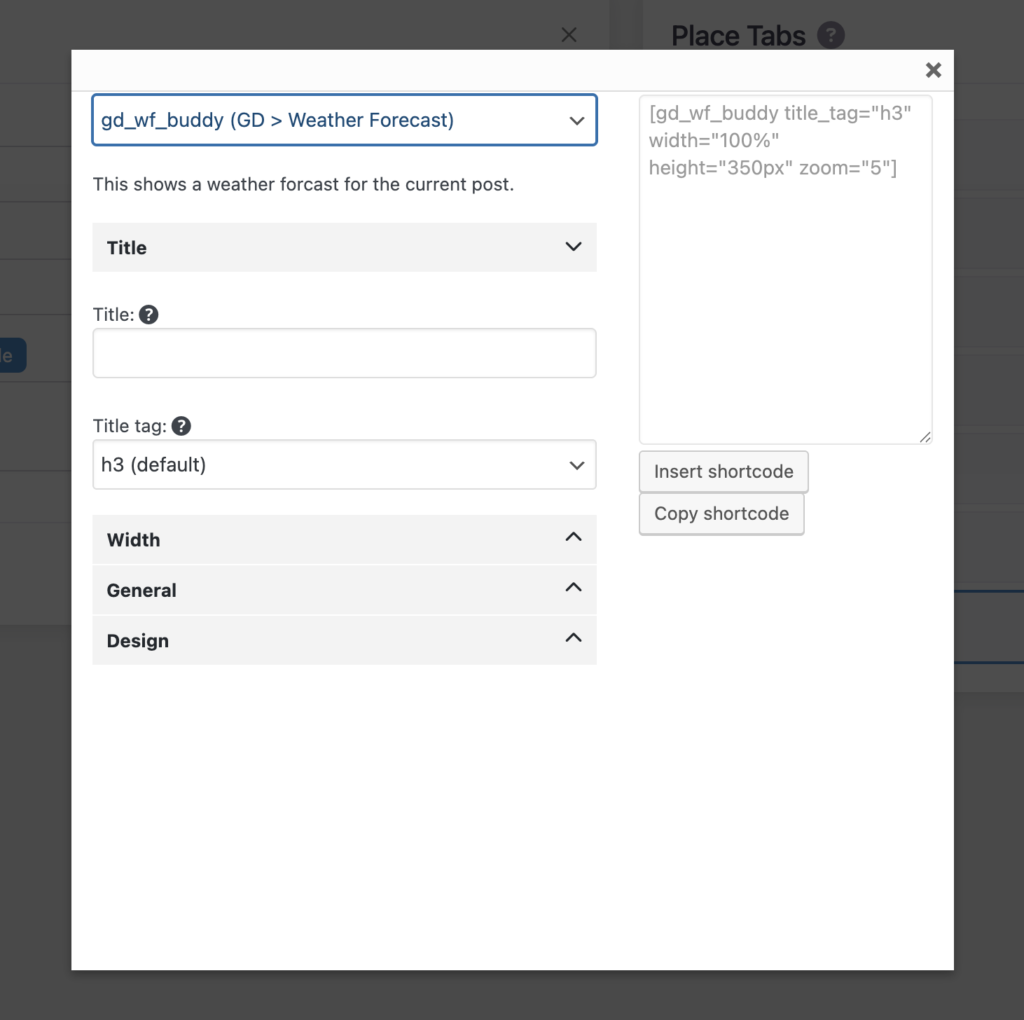
- From the shortcode list, find and select gd_wf_buddy (GD > Weather Forecast).
Configuring the shortcode options #
After selecting gd_wf_buddy, a configuration panel appears with the following options:
- Title — optional title to display above the weather widget on the listing page
- Title tag — the HTML heading tag used for the title (default: h3)
- Width — control the widget width on the listing page
- General — additional display options
- Design — styling options for the widget
The generated shortcode will look like this:
[gd_wf_buddy title_tag="h3" width="100%" height="350px" zoom="5"]Adding via the Block Editor (FSE / Block Theme) #
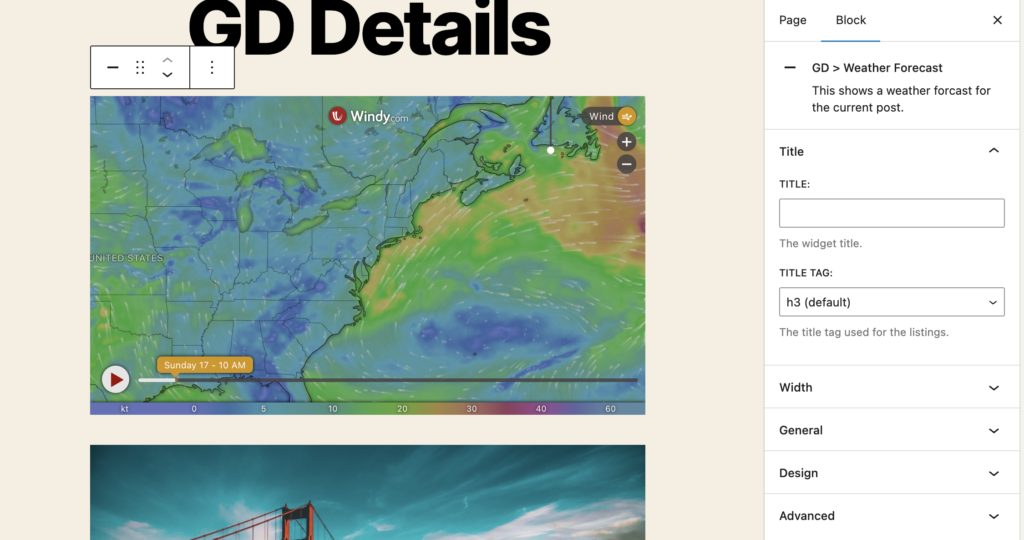
If you are using a Block Theme with Full Site Editing, you can also add the gd_wf_buddy shortcode to your listing detail template via the GD > Weather Forecast block, which appears in the block inserter once the addon is active.
How the weather widget appears on listings #
Once configured, the weather widget automatically appears on listing detail pages. The widget displays weather based on the listing’s stored location — no manual input is needed from listing owners.
When using Windy, the widget renders as an interactive animated weather map — visitors can see live wind, temperature, and weather patterns centred on the listing’s location
Who is this addon best suited for? #
- Tourism directories — help travellers plan visits with accurate weather forecasts
- Local business listings — show real-time conditions at each business location
- Event directories — display weather for upcoming event locations
- Outdoor venue directories — parks, sports facilities, campsites, beaches
- Accommodation directories — hotels, holiday rentals, hostels
Troubleshooting #
Weather widget not showing on listings #
- Confirm the
[gd_wf_buddy]shortcode has been added correctly to the listing field settings in GeoDirectory. - If using Tomorrow.IO, confirm your API key is entered correctly in GeoBuddy → Settings → Weather Forecast.
- Make sure the listing has a valid location set — weather cannot be fetched without a location.
Tomorrow.IO weather not loading #
- Verify your API key is correct and active in your Tomorrow.IO account dashboard.
- Check that your Tomorrow.IO account has not exceeded its free tier API request limits.
Windy map not loading #
- Windy requires an internet connection and access to windy.com. If your server blocks external requests, the map may not load.
- Check your browser console for any errors related to iframe loading or Content Security Policy (CSP) restrictions on your site.


